
How to Set Up Your Rhombus Account:
-
Assign Enterprise Licenses
-
Enable Features
-
Create Locations
-
Batch Assign Devices
-
Create User Roles
-
Add a New User
Start by logging into your Rhombus Console.
-
Visit Rhombus Website → select Console Sign In
1. Assign Enterprise Licenses
Enterprise Licenses unlock Rhombus's advanced AI-powered camera features and are assigned per device. Without an Enterprise License assigned, the equipment operates with only basic functionality.
To assign enterprise licenses:
-
-
Go to Settings ⚙️ → Licenses & Features → Manage
-
On the License Dashboard, you'll see a summary of available license types. Click the blue text below the license type
-
A pop-up window will appear where you can select which devices to assign licenses to
-
Click Save when finished
-
2. Enable Features
Once your Enterprise Licenses have been assigned, you can enable AI Features and 30-day included Cloud Archiving.
-
-
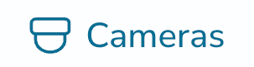
Go to Settings ⚙️ → Licenses & Features → Manage → Cameras tab (icon shown below)
-
Find your device → Action column → Manage → Device Features
-
Enable / disable any features you would like
-
Click Save
-
3. Create Locations
Many companies have several locations with multiple cameras at each location.
To create each location:
-
-
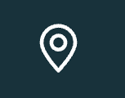
Left hand menu → Locations (icon shown below) → Add Location
-
Enter the Name and Address
-
Click Save
-
4. Batch Assign Devices
When you first set up Rhombus, your devices are registered to your account but not tied to a specific location. Assigning devices to a location tells Rhombus where each piece of equipment physically lives.
To batch-assign devices to each location:
-
-
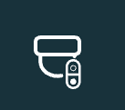
Left hand menu → Devices (icon shown below) → Checkbox next to the device names → Actions → Assign To Location
-
Search / select the desired location(s)
-
Assign
-
Repeat these same steps for the door controllers, and readers.
5. Create User Roles
User roles in Rhombus define what each person on your staff can see and do within the console. Without roles, you'd either have to give everyone full admin access or manage permissions one user at a time.
To create a user role:
-
-
Log into the Rhombus Console → Settings → Account & User → Manage Roles → Add Role
-
Enter the name for the role → Next
-
Then, in order, choose the following for the role you're creating:
-
Admin Permissions
-
Location & Device Permissions
-
Access Control Permissions
-
-
Create Role
-
6. Add a New User
As a reminder, all Fitness GM members will be added to Rhombus automatically.
-
-
Dashboard → Add additional users → Add User
-
Enter:
-
Name
-
Email address
-
Access permissions
-
Upload photo (optional)
-
-
You'll be taken through a series of follow up prompts and questions. These vary depending on the access you selected.
-
Create
-
A welcome email will be sent to the new user’s email with instructions on creating a Rhombus user account.